


Debugging C code can be confusing at first, but a command line debugger gives you direct access to what the process did before it crashed or produced strange output. GDB, the GNU Debugger, connects compiled C code with the original source files by reading debug symbols, tracking stack frames, and inspecting memory. With the right build flags and a small set of core commands, you can pause execution at any source line, watch variables change, and trace a crash back to the exact statement that triggered it.
Preparing C Programs for GDB
Preparing C code for GDB starts at compile time, not at the debugger prompt. The compiler needs to attach extra information to the generated machine code so GDB can match instruction addresses with source files, line numbers, function names, and variable names. Current toolchains store this information in DWARF debug sections inside the executable or in separate debug files, and GDB reads those sections to present source level state while the process runs or after it crashes.
Choices such as which options you pass to the compiler, how much optimization you request, and whether you keep or strip debug sections all change how much help GDB can provide. With a few standard flags and a consistent build habit, it becomes much easier to pause at the right source line and inspect real variable values rather than raw addresses.
Compiling with Debug Symbols
GDB relies on debug symbols that the compiler writes into the output file. Those symbols include line tables, type information, function names, and variable locations. GCC and Clang emit this information when you pass the -g option, and on current platforms that option produces DWARF debug sections by default.
This is a very common starting point for a debug build with GCC:

The command tells GCC to add debug information with -g, to turn off optimizations with -O0, and to report many common issues with -Wall. The absence of optimization keeps generated code closer to the written C source, which makes line stepping in GDB easier to follow for beginners and removes surprises where the optimizer reorders or merges statements.
This small C file gives you a specific target for this build:
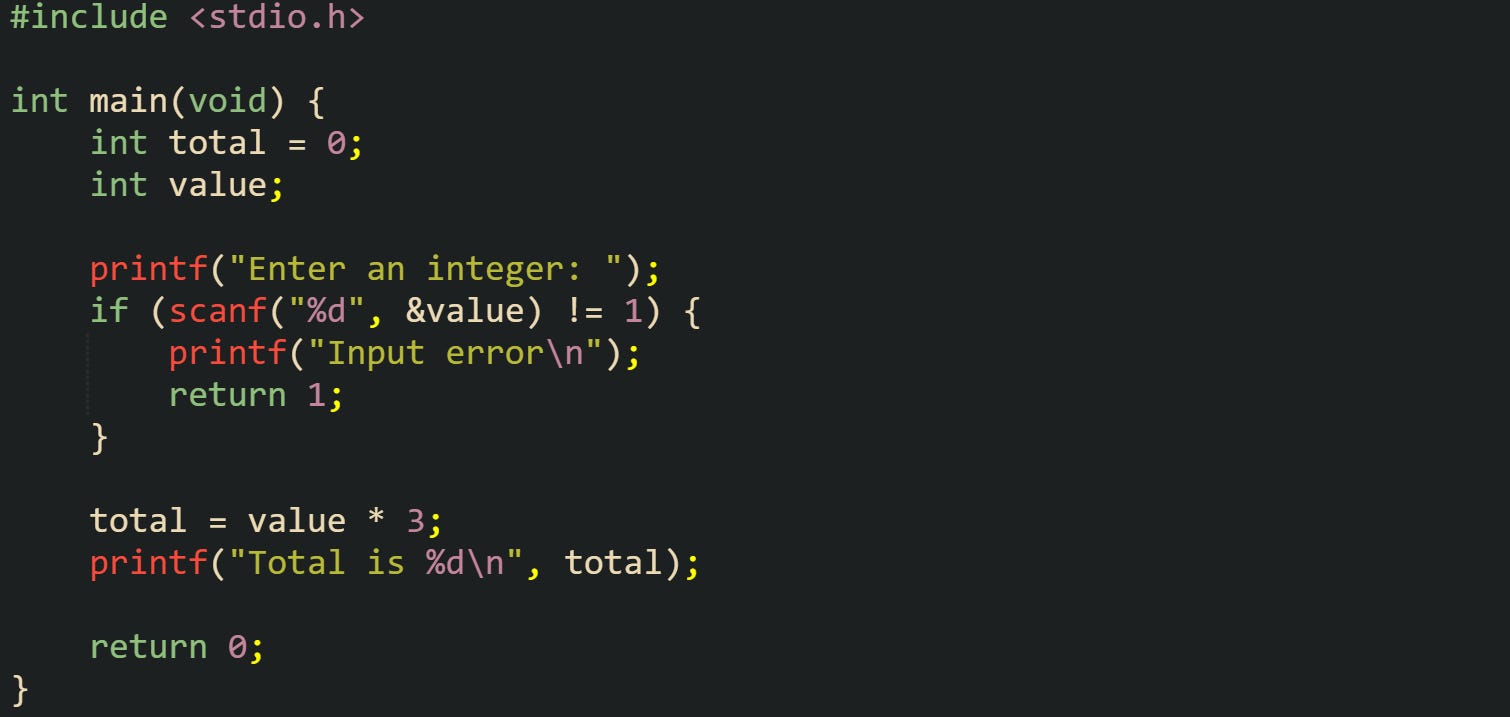
Compiled with -g -O0, this source file carries enough information for GDB to stop on the call to scanf, step to the multiplication, and print the total variable by name. Without -g, GDB still loads the executable but has only addresses and, at most, a few symbol table entries from the dynamic loader.
Optimizations interact closely with debugging. Higher levels such as -O2 and -O3 let the compiler inline functions, remove variables, and reorder instructions in ways that keep performance high but sometimes confuse line stepping. GCC provides -Og as a compromise that keeps most debugging behavior usable while still applying optimizations that are unlikely to hurt debuggability. Many C projects use -g -Og as their default debug configuration for that reason. On current GCC releases, stabs debug information has been phased out, and DWARF is the standard format. Older formats such as stabs remained in maintenance mode for a long period and have effectively been replaced in mainstream toolchains, so modern GDB sessions read DWARF sections almost exclusively.
Multi file C projects use the same options, just applied to each translation unit. The object files carry debug information, and the linker merges that data into the final executable:

With this build, GDB can set breakpoints in either math_utils.c or main.c by file name and line number, and backtraces will walk through both source files with readable function names.
Running C Code Inside GDB
After you have an executable that includes debug symbols, GDB needs to load that file and keep control of the process while it runs. The standard way to start a session against a C binary from a shell prompt looks like this:

GDB reads the executable, loads any linked shared libraries, and then stops at its own prompt without starting the process immediately. The compiled code is ready but not yet running, which gives you time to set breakpoints or change settings before the first instruction executes.
After you reach the (gdb) prompt, the run command starts the process. If the C entry point is named main, GDB transfers control to that function, and execution continues until a breakpoint, a signal such as SIGSEGV, or program exit occurs. Short forms such as r also work, and you can call run again to restart the process from scratch during the same debugging session.
Some C code reads command line arguments. To make that work under GDB, you can pass arguments after the executable name when launching GDB, or you can set them from inside the debugger. From the shell, many developers use a pattern like:

This line tells GDB to start with ./main and record input.txt and 10 as the argument list. When you type run at the prompt, those values reach main through argc and argv in the same order they would in a normal shell run.
You can also change the arguments after GDB is already running:

GDB then starts the process with argv[1] equal to "report.csv" and argv[2] equal to "15". Adjusting arguments inside the debugger keeps it easy to rerun the same code with different inputs.
Now let’s look at a slightly larger example that shows how this fits with C source that reads arguments and environment variables:
![#include <stdio.h> #include <stdlib.h> int main(int argc, char *argv[]) { const char *mode = getenv("APP_MODE"); printf("Arg count: %d\n", argc); if (argc > 1) { printf("First arg: %s\n", argv[1]); } if (mode != NULL) { printf("Mode: %s\n", mode); } return 0; }](https://substackcdn.com/image/fetch/$s_!cleJ!,f_auto,q_auto:good,fl_progressive:steep/https%3A%2F%2Fsubstack-post-media.s3.amazonaws.com%2Fpublic%2Fimages%2F6f6a34ee-0605-4d06-8d03-f1917df08352_1489x716.png "#include <stdio.h> #include <stdlib.h> int main(int argc, char *argv[]) { const char *mode = getenv(\"APP_MODE\"); printf(\"Arg count: %d\n\", argc); if (argc > 1) { printf(\"First arg: %s\n\", argv[1]); } if (mode != NULL) { printf(\"Mode: %s\n\", mode); } return 0; }")
You can start GDB, set APP_MODE in the shell, adjust the argument list, and then use run to see exactly how argc, argv, and mode look on entry to main. That combination forms a common base for later use of breakpoints and variable inspection.
GDB also supports running binaries that use stdin heavily, such as tools that expect input from a pipe. In that case, the debugger still wraps the process, but input redirection works the same as it would without GDB, which means commands like gdb ./filter paired with later run commands can handle piped or redirected data while still giving full debug access.
Loading Existing Binaries in GDB
Real projects sometimes produce executables without debug information, either because they are release builds or because they were compiled with a minimal option set. GDB still attaches to those files, but the experience changes. When you run:

The GDB loads the file and any dependencies, yet the absence of DWARF sections means it has little or no mapping from machine addresses to source lines. Backtraces tend to show raw addresses and possibly exported function names, and you cannot set breakpoints on specific source lines.
Many operating systems solve this by separating debug data from shipped executables. Build pipelines keep the fully annotated binary, then strip debug sections when preparing the version that gets deployed to users. The extra information moves into separate files stored under locations dedicated to debug data, and the system records build IDs or debug links so that tools such as GDB can match an executable with the correct symbol file later.
GDB can make use of those external symbols without changing how you start the debugger. On a distribution that ships debug packages, installing the extra package for a given binary adds DWARF sections in a place where the debugger knows to look. When you launch GDB on the stripped executable, it detects the build ID, finds the matching debug file, and quietly merges the extra information so that line numbers, variable names, and source file names appear as if the debug data had been present all along.
If you control the source and only have a stripped executable on disk, the most reliable repair is to recompile with -g and, if needed, a lower optimization level. For example, you may have first built a release binary with:

You can then rebuild a debug friendly variant without touching source code:

The new app_debug file includes DWARF data for all object files, and GDB gains full access to file names, line numbers, and type information. Keeping this separate debug build avoids changes to flags that might affect behavior of the original release binary while still giving a strong base for investigative work.
Stepping Through Code with GDB
After C code has been compiled with debug symbols and loaded into GDB, the next step is to control how that code runs, pause execution at interesting spots, and look at real data rather than guessing from log messages. GDB does this by letting you stop at specific lines or functions, single step through instructions, and inspect the call stack and variables held in memory. With a small set of commands, you can watch the process move from line to line and see exactly where it goes wrong.
Breakpoint Mechanics in GDB
A breakpoint tells GDB to pause the running process when control reaches a particular location in the compiled code. That location can be a function entry point, a specific line in a source file, or a raw address. With debug symbols present, most work starts with human friendly locations such as file and line numbers rather than numeric addresses.
GDB accepts breakpoints directly on function names. After starting GDB on a compiled binary, you can type:

GDB looks up the symbol main, maps it to a file and line number, and records that breakpoint. When you then start execution with:

The control stops as soon as main is about to execute. GDB prints the source line and shows that the current frame is main, which makes it a natural place to begin stepping.
Line based breakpoints give more precision. If you know that a suspicious calculation sits on line 23 of a file named stats.c, you can type:

When the process reaches that source line, GDB halts. That pause lets you inspect local variables and step through the following lines in order.
This short C fragment gives you a realistic place to attach a breakpoint:
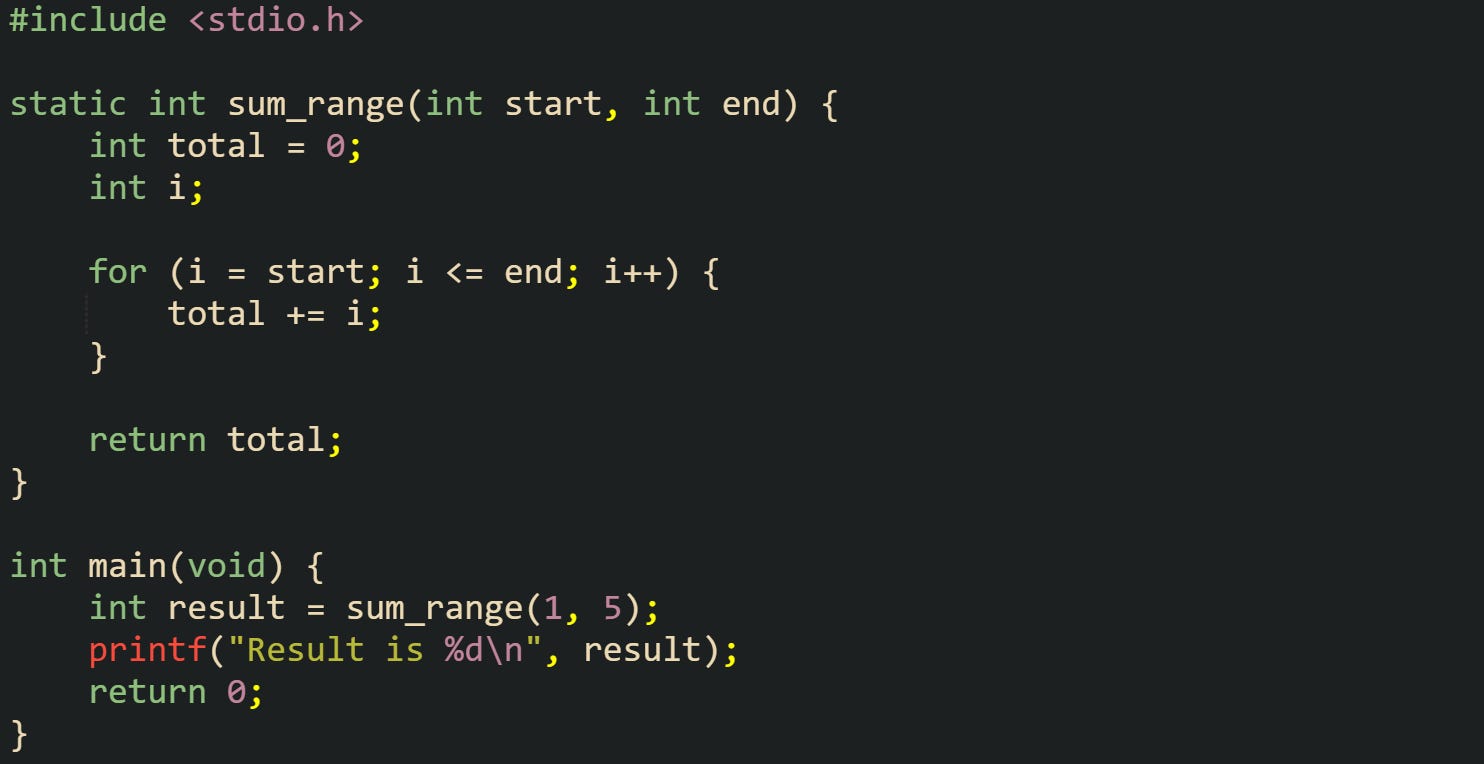
With this code compiled with -g, you can set break main to stop at the entry to main, or break sum_range to stop at the helper function, or even break stats.c:8 if that is the actual file name and line for the for loop. That gives a direct view into the loop that builds total.
Once a breakpoint has been hit, stepping commands control how execution advances. The next command executes the current line and stops at the next source line in the same frame, stepping over calls to other functions. The step command moves into function calls, pausing at the first executable line inside the called function. continue resumes execution until another breakpoint or signal stops the process. These three commands form the basic control loop for walking through code under GDB.
GDB tracks all breakpoints in a table. The info breakpoints command lists every active breakpoint along with its number and location. You can remove a breakpoint with delete 1 if it was numbered 1, or temporarily turn it off with disable 2 and later bring it back with enable 2. That control helps when you want certain breakpoints only for early runs without removing them completely.
Watchpoints extend the same idea to variable values. Instead of stopping at specific lines, a watchpoint stops whenever the value of an expression changes. In the sum_range example, a watchpoint on total would halt the process every time the loop writes a new value:

At that point, every pass through the loop pauses with a message that shows the old value and the new one. This is very useful when a counter or index drifts in a way that is hard to see from print statements alone, and it works equally well for more complex expressions such as array elements accessed through indices.
Inspecting Program State in GDB
Stepping and breakpoints are only half of the story. The other half is inspecting the state of the process when it stops, either because it hit a breakpoint or because it crashed. GDB gives a view of the call stack, local variables, function arguments, and memory contents. With debug symbols present, those views use source level names, which makes it much easier to relate what you see in GDB to the C source on disk.
When a segmentation fault occurs, GDB prints a message along with the current source location. When a run crashes on an invalid pointer access, GDB output at the prompt often looks like this:
![Program received signal SIGSEGV, Segmentation fault. 0x00005555555551a2 in compute_average (values=0x0, count=5) at stats.c:12 12 total += values[i];](https://substackcdn.com/image/fetch/$s_!oKNu!,f_auto,q_auto:good,fl_progressive:steep/https%3A%2F%2Fsubstack-post-media.s3.amazonaws.com%2Fpublic%2Fimages%2Fe57d13af-bbee-4f8b-90f6-731b9a33c7ea_1735x127.png "Program received signal SIGSEGV, Segmentation fault. 0x00005555555551a2 in compute_average (values=0x0, count=5) at stats.c:12 12 total += values[i];")
The backtrace command, abbreviated bt, prints the active call stack. In a short stack, you could see something like:

This tells you that the current frame is compute_average, called by main, and that the crash took place at line 12 of stats.c. The location points at a loop body that dereferences values, which is a null pointer in this run.
The source that leads to this crash can look like this:
![#include <stdio.h> double compute_average(const int *values, int count) { int i; long total = 0; for (i = 0; i < count; i++) { total += values[i]; } return (double)total / count; } int main(void) { int *data = NULL; double avg = compute_average(data, 5); printf("Average is %.2f\n", avg); return 0; }](https://substackcdn.com/image/fetch/$s_!9VNh!,f_auto,q_auto:good,fl_progressive:steep/https%3A%2F%2Fsubstack-post-media.s3.amazonaws.com%2Fpublic%2Fimages%2F62429742-51dd-499b-9814-1da4dd0513dd_1492x841.png "#include <stdio.h> double compute_average(const int *values, int count) { int i; long total = 0; for (i = 0; i < count; i++) { total += values[i]; } return (double)total / count; } int main(void) { int *data = NULL; double avg = compute_average(data, 5); printf(\"Average is %.2f\n\", avg); return 0; }")
With this code, GDB makes it very obvious that values is null inside compute_average, which tells you to go back and create valid storage before calling that function.
To inspect local variables in the current frame, GDB provides the info locals command. That prints all local variables in the selected frame with their current values. info args prints arguments in that frame. For targeted checks, the print command (short p) evaluates a single expression. In the crash above, commands such as print count, print i, and print values give a direct look at the loop bounds and the pointer value. Stack frames are numbered from zero at the currently executing frame upward toward older callers. You can change the selected frame with frame 0, frame 1, and so on. For the compute_average example, frame 1 selects main, which lets you inspect variables and arguments there instead of inside the helper function. Moving up and down the stack like this helps connect state at the crash site with the code that passed bad values earlier.
C code often allocates memory dynamically on the heap as well as on the stack. GDB handles both kinds of storage. Local variables and arrays declared inside functions sit on the stack, while memory returned from malloc lives elsewhere and is accessed through pointers. Both kinds of data can be inspected.
Take this code:
![#include <stdio.h> #include <stdlib.h> static void write_values(int *buffer, int size) { int i; for (i = 0; i <= size; i++) { buffer[i] = i * 2; } } int main(void) { int size = 4; int *buffer = malloc(size * sizeof(int)); if (buffer == NULL) { return 1; } write_values(buffer, size); printf("First entry is %d\n", buffer[0]); free(buffer); return 0; }](https://substackcdn.com/image/fetch/$s_!GF_m!,f_auto,q_auto:good,fl_progressive:steep/https%3A%2F%2Fsubstack-post-media.s3.amazonaws.com%2Fpublic%2Fimages%2F06bb02ad-41f7-46bf-bf49-9be000b9b98c_1757x843.png "#include <stdio.h> #include <stdlib.h> static void write_values(int *buffer, int size) { int i; for (i = 0; i <= size; i++) { buffer[i] = i * 2; } } int main(void) { int size = 4; int *buffer = malloc(size * sizeof(int)); if (buffer == NULL) { return 1; } write_values(buffer, size); printf(\"First entry is %d\n\", buffer[0]); free(buffer); return 0; }")
The off by one condition in write_values writes one element beyond the allocated block, which can trigger a crash or corrupt nearby memory. Under GDB, a crash here often lands inside write_values or inside allocator internals that react to heap metadata being damaged. The backtrace and frame commands still let you move to the exact source location and inspect buffer, size, and the loop index i.
Heap memory can be inspected by combining pointers with the print command, or by using the x command to examine memory at specific addresses. For instance, after a breakpoint inside write_values, calling print buffer reveals the address, and x/4dw buffer reads four words from that address and prints them as decimal integers. That gives a quick look at the raw values in the allocated block.
Sometimes you do not run under GDB at the time of a crash but still have a core dump saved by the operating system. GDB can open that snapshot with:

./stats is the same executable that produced the core file. GDB then loads the saved state, including stack frames and memory contents, and you can run bt, info locals, info args, frame, print, and x commands as if the crash had just happened in a live session. This method works well when a failure appears rarely in production and you want to reconstruct the state afterwards without rerunning the faulty sequence by hand.
Conclusion
GDB ties compiled C code back to source files, so with -g builds you can stop on real lines, inspect variables, and walk the call stack when something crashes. Breakpoints and stepping commands control how the process runs, while tools such as bt, info locals, info args, print, and x reveal what sat in memory at the moment execution stopped. Running code directly under GDB or opening a saved core file follows the same mechanics and gives a precise view of where execution went and how data changed right before things failed.
Awesome breakdown! Thanks for laying out the GDB basics so clearly. Getting a handle on debug symbols and those compiler flags is honestly so critical for anyone wrestling with C. It realy makes a huge difference in finding those tricky bugs.